
PowerEdge R630 Server/Lab
| PowerEdge R630 Server/Lab | |
|---|---|

| |
| Information | |
| Owner | Fxtrip |
| Version | 1.0 |
| Status | In Progress |
| Started On | February 2025 |
| Cost | TBD |
Overview
Dell PowerEdge R630 Projects (a.k.a. The Homelab Core)
The R630 is the heart of the lab right now — a surprisingly capable little rack beast that's pulling way more weight than you'd expect from an old enterprise box. It's running Proxmox VE, which has basically become the sandbox for everything I'm messing with. From there, I've spun up a bunch of VMs to explore how far I can go with local-first infrastructure.
So far, I've got:
A Flask-based API running in its own VM — nothing wild yet, but it’s a clean interface I can use to pass data between tools or services. It’s meant to be a glue layer for automation later on.
A self-hosted wiki for documentation, project logs, and general knowledge dumping. This has already become the home for all the build notes, configs, and ideas that were previously scattered across too many devices and napkins.
Ollama, running locally — yeah, LLMs without the cloud. It's been super interesting trying out lightweight models, passing prompts via API, and just seeing how viable local AI is when it’s not backed by a datacenter. It’s not fast (yet), but it works — and I control everything.
A few networking-focused VMs to experiment with traffic routing, virtual LANs, and just understanding how stuff talks to each other behind the scenes. Eventually, I want to scale this into something that mimics small production environments — or at least doesn’t fall apart the second you throw multiple services at it.
All of this is still pretty early-stage, but it’s functional. Every VM I spin up is another tool I can play with, tweak, or break on purpose. The goal is to build a self-reliant environment that doesn’t depend on third-party services — something I can iterate on and use as a base for bigger ideas (including automation, CNC control, AI inference, and more).
Journal Pictures
-
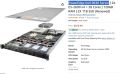 Starting with a $360 server. 2TB HD, 56 Cores and 125GB of Ram
 -
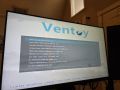 Found a Cool utility called Ventoy. Run multiple boot ISOs and have usb storage on a boot disk
 -
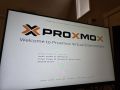 Set up Proxmox
 -
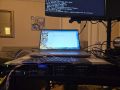 Got the server up and running and the web interface
 -
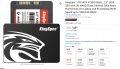 Figured out I needed to set up raid and get my drives. Redid everything
 -
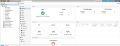 The server was delayed a month and lost in Nashville. When I powered it on the replacement had been upgraded 72 cores!
 -
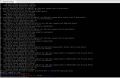 Spun up an Unbuntu Server VM headless
 -
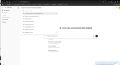 Installed Ollama, Several LLMs and got the web interface working for my locally run AI
 -
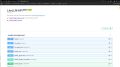 Installed a Tool to allow me to connect to chatGPT and other AIs through my local interface
 -
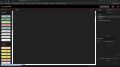 Installed Node JS, Heard about it for a while with Microcontrollers. Will be fun for the lab.
 -
 Set up an API that allows programs to ping my AI and get a response.
 -
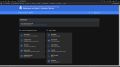 Got overwhelmed with tabs and port numbers. Made a web page with Homer.
 -
 Tested my API with excel lol Just a goal for the end of the day type thing.
 -
 Attached a Wiki to my Server's Landing Page.


What Is Ventoy (and Why It’s a Game-Changer for USB Boot Drives)

If you’ve ever flashed a USB stick the old-school way, you know the pain. Traditionally, making a bootable USB meant using tools like Rufus, BalenaEtcher, or dd to overwrite the entire drive with an ISO image. Once that happened, the USB was basically locked into being a single-purpose boot device — no extra storage, no flexibility, and you'd have to re-flash it every time you wanted a different OS.
Ventoy flips that whole process on its head.
Instead of writing a single ISO image directly to the drive, Ventoy installs a small bootloader partition on the USB stick — kind of like giving it a smart brain. After that, all you do is drag and drop your .iso files (or .img, .vhd, etc.) directly onto the drive like normal file storage. That’s it. No flashing, no overwriting.
When you boot from the Ventoy USB, you get a menu that shows every ISO sitting on the drive. Pick the one you want, hit enter, and it boots straight into it. Want to add another OS? Just copy the ISO over. Done. Want to remove one? Delete the file. It’s literally plug-and-play for ISOs.
Even better — Ventoy lets you use the remaining space on the USB drive for normal file storage too. You can toss in ISOs and still use the stick like a portable flash drive. Need to carry a Windows installer and some drivers or config files? No problem.
Initial Server Startup

Once you’ve got your image ready, the next step is to get the server on the network and confirm that a reboot reliably loads the web UI.
To install an operating system directly onto bare metal, I recommend using Ventoy — a free and flexible tool that makes it easy to boot from multiple ISO files on a single USB drive. Just drag and drop the ISOs onto the drive. No reflashing required.
For the hypervisor, I’m starting with Proxmox, but I plan to test the free version of ESXi as well. Both are capable of running Linux and Windows virtual machines, but in general, Proxmox leans more Linux-focused, while ESXi is a bit more tuned for Windows infrastructure.
Since my main workstation is already Windows-based and I have several Windows VMs, I may eventually reformat and switch over to ESXi to streamline compatibility.
You can grab both of these hypervisors from their respective sites:
Get Proxmox Here Get ESXi from VMware (account required)
After some backlash from the community, VMware (under Broadcom) brought back the free version of ESXi in April 2025. The latest release — ESXi 8.0U3e — is available for non-commercial use. You’ll need to register for a free VMware account to download it.
Walk yourself through the installer — it's pretty straightforward. And if you get stuck, just ask ChatGPT.
Check your Raid Config, Drives, and iDRAC
Make sure you have all your drives installed before setting up the RAID. You can’t just add drives to the existing array later — any new drives will have to be added as a separate storage pool. These servers come with built-in hardware RAID controllers, so plan your setup up front.
Also, be aware of iDRAC (Integrated Dell Remote Access Controller). It’s Dell’s built-in remote management system that runs independently of the main OS. Through a web browser, you can power the server on or off, access the BIOS, and install operating systems — all without needing a monitor or keyboard connected. I use it to mount ISOs and install server OSes like Proxmox or ESXi directly over the network.
If you bought your server used, you might get lucky — some still have old OS licenses or install images linked to that hardware.
Proxmox A Computer Inside a computer


Proxmox VE (Virtual Environment) is a free and open-source hypervisor that lets you run virtual machines and containers on a single physical server. You install it directly onto your hardware, and from there you can manage everything through a clean web interface. It turns your server into a local cloud — you get to spin up, snapshot, back up, and manage multiple operating systems all at once, without needing separate physical machines.
Once you’ve got Proxmox running, you can start doing a lot of cool server-side stuff. For example, you can create isolated testing environments to try out new Linux distros or break things without damaging your main system. You can also host your own web servers, APIs, and self-hosted apps like a wiki, a password manager, or a personal cloud storage service — all inside different VMs that don’t interfere with each other.
You can use it to practice networking and sysadmin skills by setting up multiple virtual machines, giving them separate virtual networks, and experimenting with firewalls, DNS, and routing. It’s a great way to simulate real-world environments without needing racks of hardware.
If you’re into automation, Proxmox is a great way to build a dev lab. You can run tools like Flask or Node-RED, or even local AI inference engines like Ollama. It’s also perfect for hosting internal dashboards using tools like Grafana or Netdata to monitor what’s going on across your services.
One of the best things about Proxmox is how easy it makes rollbacks. If you’re about to update or try something risky, just take a snapshot. If it all goes sideways, roll it back like nothing ever happened.
And if you're feeling creative, you can even spin up lightweight game servers, development sandboxes, or mini-production environments all on the same box.
Overall, Proxmox makes your server into a flexible, high-power platform for experimenting, learning, and building — all without relying on cloud services. It’s local, fast, and gives you full control over how your infrastructure runs
The first thing I did was load up several VMs
There are a bunch of Linux distros I’ve never had the chance to mess with — but hey, it’s never too late to learn, right? I ended up disabling the hardware RAID controller and switching over to ZFS for storage, based on a lot of community recommendations.
ZFS is smart. It can use extra RAM for caching when the system isn’t under load, and it offers powerful snapshot features that are especially useful in Linux environments. It’s not perfect though — Windows VMs can get a little glitchy on ZFS, but overall it’s been solid.
Now that everything’s set up, I can spin up or shut down VMs for Windows, macOS, Linux, even some Android builds. All you need is the ISO downloaded to Proxmox, walk through the setup, and you’re ready to go
Here is a list of useful stuff that you can do now.
|
|
Bill of Materials
| Item | Cost | Quantity | Sub Total | Distributor |
|---|---|---|---|---|
| 1 TB Drives | 50.00 | 6 | 300.00 | Amazon |
| Drive Caddy 4 Packs | 24.00 | 2 | 348.00 | Amazon |
| Front Bezel | 34.00 | 1 | 382.00 | Redacted |
| Server | 360.00 | 1 | 742.00 | Amazon |
| Cisco Business CBS350-24T-4G Managed Switch | 495.00 | 1 | 1237.00 | Amazon |
| Various PLCs ControlLogix, CompactLogix, SLC-504, Automation Direct Click, Siemens S-1200, Remote IO blocks. | Aprox $2k | 1 | Not Counted | Ebay |